Welcome to Davies Teacher Tech Tips! Each week, a new tech tip or tool will be posted to this blog. If you have any suggestions for tools or tips to include, feel free to comment and add a suggestion.
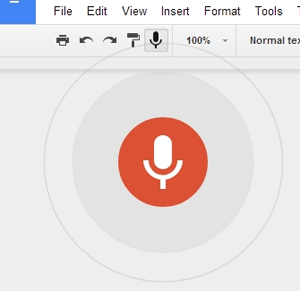
So clearly I am on a little bit of a Google kick to start they year out, but I promise to expand the horizons going forward. However, Google just has so many neat little tools, add-ons, and extensions that can make life so much easier when they are used at the right time or in the right circumstances. The tool this week is one I learned about earlier this year from our Special Services Assistive Technology Consultant. It is a tool in Google Docs called Voice Typing.
Voice Typing does just what it sounds like. It allows an individual to speak text into a document instead of typing it. This can be a great tool for some of those students you have who struggle with writing, with forming their thoughts into organized, constructive papers and assignments, or who have limitations with being able to type. It would also be great in foreign language, as it supports a variety of languages. So far, the tool appears to be very easy to use and very accurate. Additionally, it is already a part of the documents tools menu, so there are no additional extensions or add-ons to add to the document or account.
Overall, this tool is simple, easy-to-use, and could be very helpful for certain students, certain classes, or certain assignments. Try it out or check out the link and video below for more help and info!
From http://www.edudemic.com/wp-content/uploads/2014/08/google-classroom.png
Welcome back! It was a short summer and it has been a fast school year so far. Even though we've been in school for almost a month already, this is my first chance to get back to my weekly blogging. This has been a whirlwind school year so far but things are finally settling down!
This blog post is actually a topic with some new tips that many of you who already use Google Classroom may be aware of. However, there are even more new features that I just recently learned about from a colleague of mine, the tech coach at another school, and I think these new features are great and make Google Classroom even easier to use with other tools and sites!
So first, as many of you probably realized as you came back this school year, Google has added a number of new features to Classroom, making it easier to create and share assignments with students, but also to reuse assignments from year to year, which is a question I got A LOT last year from teachers. In Classroom now, when you go to add content to a class and click the plus button at the bottom of the screen, there are some new options for asking questions and reusing posts. Ask a question is a new option to start a discussion in class or do a quick formative assessment, You can pose a question to the class, decide whether students just answer your question or can reply to each other, and then easily grade and give feedback in one place. It also keeps the discussion stream in one place, instead of cluttering up the main classroom stream.
Along with the question feature, teachers can now reuse assignments. This means that if you create a new class for each new year or semester, you can easily reuse assignments from last year, including creating new documents for your new students. Also, if you forget to assign a new assignment to multiple classes, you can easily fix that by reusing the assignment, instead of having to create it from scratch again.
Another new feature that has just been added here in September is the Calendar feature. Each class now has a calendar and assignments are automatically there. Additionally, teachers and students with multiple classes can view their Classroom Calendar to see all assignments and due dates for all classes at once. This is an easy way to stay organized for both teachers and students.
And best of all, my favorite new feature to Classroom and one I think will continue to improve, is the ability to now easily add info from other online tools straight to your classroom. Some online tools, such as Quizlet, PBS, Discovery Education, etc., have a button that allows you to share content from their sites directly to Chrome. So for instance, if I have a Quizlet review I have made, with one button I can share that to my Classroom for students to access. Check out the video below from my tech coach colleague at North for a walk through on how to do that.
But it gets even better! Now, Google has also created an extension for Chrome that lets you share any site and content from a site directly to your Google classroom. So if I find a great resource to use or if I want all my students to access the same website at the same time, I no longer have to write it on the board and wait for them all to type it in, e-mail it to them all, or try and find another easy way for them to access it. I can just post it to classroom with the extension button and they can all easily access it at once. It makes things so much easier and faster. Teachers have the option to Push the link to students and if they also have the extension it will actually open the website immediately, or use it in an announcement or assignment. There is so much potential for this extension!
Overall, the new features in Classroom means it just keeps getting better and easier! It seems like every time I have a teacher tell me "it would be really nice if I could do this (insert thing they wish they could do) in classroom"... it eventually shows up. So keep watching for more changes and updates, but for now, using Classroom continues to be an easy and effective way to manage content in the classroom.
Flipsnack is a free online tool that allows you or your students to create flipping books, either by using existing PDFs or by creating books from scratch on their website. While there are some limitations with the free version, like limiting books to 15 pages and not being able to download them, it is an easy tool students can use for creating projects.
To create a book from a PDF, you simply upload a PDF or multiple PDFs and combine them into one book. The book can then be easily shared with others through a link and read online. Any interactive content from the PDFs like web links are still active and the book can be "read" by turning pages, just like an actual book.
My favorite option with flipsnack is the ability to create books within the site. Students can create a book, add and rearrange pages, use premade layouts to make page creation easier, insert pictures, text, links, and other media, and then publish and share their books. Creating and editing pages is easy and streamlined, as well as publishing and sharing. All of these options make flipsnack a great choice for student projects or for teachers to use to create resources for their students. Check out the links below for more information on how to use flipsnack.
There are a number of formative assessment tools available for classroom use, some of which I have blogged about before. One new tool I learned about this week thanks to my colleagues up at North is an online tool called Formative. Like the name suggests, this tool is designed for formative assessment in the classroom. However, it goes beyond the classroom and lets teachers create assignments that students can complete in or outside of class. This is a great feature that most existing formative assessment tools do not have.
Formative has a number of very useful features. Teacher can create classes and then students can either join those classes, or join an assignment without having to log in. But with Google quick log in, it's easy to have students log in and have accounts.
First, you can start by creating an assignment from scratch or by uploading an existing PDF, Word Document, or Google Doc. If you start from scratch, you can add different types of questions, including multiple choice, true/false, text, or drawing. The drawing response also lets students upload photos, so if a problem is too complex to draw on a computer, they could potentially work it out on paper, take a picture of it, and add it that way. The possibilities are endless! If you start by uploading an existing document, you can then add those same types of questions to the document, making it interactive for students. However, you do not have to prepare assignments and questions ahead of time - you can also do quick questions live in class and receive data back as well.
Once an assignment is made, the teacher can then assign it to one or multiple classes, and then give students a quick code or link to join the assignment, or have them access it through the class dashboard. Teacher can choose to do assignments together in class, or have students complete them outside of class. Sharing assignments with other teachers is easy too!
Finally, once assignments are under way, teachers can see student work real-time and receive data in a variety of ways to track how students are understanding the class materials. Teachers can choose when students can view the feedback as well.
Overall, this tool surpasses most of the other formative assessment tools out there with it's variety of options and choices. While there are still new features being added, this tool has a lot of potential to provide an easy way to track student progress and gather data about student learning. Check out the links below for tutorials and more information!
I did an earlier post in October about Google Classroom and some of the new features it added last fall. Of course, the requests keep coming for new and better options, and just this week Google added a couple of new, frequently requested features.
First, one of the biggest things teachers have asked for is the ability to collaborate with other teachers by adding them to your classroom site. Until now, if a teacher wanted to "share" their classroom site with other teachers, those teachers could only be students. This works well to just access assignments and posts, but does nothing to allow for true collaboration on assignments, shared grading, or both having access to all student assignments. Now, you can add other teachers to your Google Classroom by going to your course's "About" page and choosing the option to "Invite Teacher." This lets other teachers access your classroom site, post comments, announcements, assignments, see student assignments, and grade those assignments.
Another frequently requested feature is the ability to add announcements and assignments and not post them immediately to the site. This allows teachers to add multiple assignments or announcements at one time, maybe for a whole week or an entire project, and then publish them later on for students to view. This feature because teachers no longer have to go in and add something new right when you want students to view it, but can better prepare by adding things ahead of time, and then just going in and publishing them right when you need them.
Google Classroom continues to get better and provide more options and choices for teachers as a Learning Management System, and I'm sure they will continue to add more and more useful features based on the feedback provided. If you use Google Classroom, hopefully you will find these new features helpful. If you haven't tried it yet, check it out and check out the links below for more info and help about Google Classroom!
Well, I missed my post last week while I was at the NDATL Conference, but it was totally worth it because I picked up some great tech ideas for some of my teachers to try in their classrooms. In particular, I was very impressed with Microsoft's Office Mix. Office Mix is an add-on for powerpoint that lets you take an existing powerpoint (or create a new one) and turn it into an interactive lesson for your students. You can record directly on your powerpoint, do screen recordings or screenshots, insert outside audio or video, insert quiz questions or other app enhancements, and then upload the whole thing so that students can access and interact with the lesson on any device. But wait, it gets even better... if your students have Office 365 accounts like ours do, you can track their access to your lesson and receive information on how they interact with the lesson and how they do on the quiz questions.
To access Office Mix, you can go to https://mix.office.com/ and download the add-on. Or, if you're in my district, you can access the add-on through the software center and add it yourself. Once you have the add-on, you'll see a tab in powerpoint that says Mix. When working in a presentation or creating a new one, you can add the different Mix elements from that tab. When you're done with your mix, you can upload it directly to Mix where it will be stored and your students can access it.
One of the things I really like about this tool is that once the Mix is created and uploaded, students can access it from any device. Additionally, while the teacher has to go through the work of creating the Mix and adding all the different elements, once it's done, you can just supply the link to the student and that is all they need to access it. You can also set different access levels, such as limiting it to your own organization, requiring a link and a sign in, allowing anyone with the link to view, or making it completely public. However, if you want to make use of the analytic tools and reports, you'll want to require a login or keep it within your organization.
Overall, I found Office Mix to be an intriguing tool that has a lot of potential for flipped classrooms or for changing the way we use existing powerpoints in the classroom. For more information, check out the Office Mix for Teachers Resources website. For some sample educational mixes and an introductory video about Office Mix, click here. Happy Mixing!
Well, I missed my post last week just due to a lot going on, and this week we have no school tomorrow, so I'm going to post this one a day early.
One of the biggest challenges teachers face when having students create presentations is how to provide them some options beyond the traditional Powerpoint slides they have created since the third grade. Additionally, options for creating videos are numerous, but most involve meshing pictures and music and all of the options can sometimes be overwhelming. Powtoon is a tool that puts a new twist on videos and presentations by allowing students (or teachers) to create animated videos.
The easy dashboard and drag and drop options make it a nice option for creating quick animated videos or presentations with little assistance and easily publish and share them. Additionally, there is app available in the Chrome store, which will make Powtoon even easier to access from your Google Drive and allow one-click sign in.
While there are some limitations to the free version (5 minute video limit, 11 styles to choose from, 10 tunes to choose from, etc.). However, even with those limitations, the options are wide and varied for the animations and students can exercise a lot of choice and options when making videos.
Overall, I found Powtoon to be a fun, easy-to-use site to make videos and presentations a little different and to try something new and fun. Check out the links below for more information, examples, and tutorials!